Documentation
Design Studio Welcome Screen
Platform Workflow
📝Contents
Getting Started: Main Project Entry Points
Design Assistant
Reference projects
Create a new project
Navigating the Help and Support Resources
Next Steps: Streamline Your Project Workflow
CELUS Design Studio offers a modern, modular approach to electronics development. Instead of starting from a blank sheet or whiteboard, engineers can construct their systems using functional blocks represented in intuitive block diagrams. These blocks can be easily added, removed, or connected, accelerating concept validation and architectural iteration.
Once the design is complete, CELUS Design Studio automatically generates the project output in standard CAD formats and a printable PDF summary, removing the need for time-consuming manual documentation.
To access the CELUS Design Studio, visit CELUS Design Platform | Define - Design - Develop and create an account. Detailed instructions are available in the CELUS Design Platform Knowledge Base.
Getting Started: Project Entry Points and Support Resources
Once logged in, you'll arrive at the CELUS Design Studio home screen. From here, you can begin your project journey through several guided entry points.

Welcome Screen: 1) Design Assistant 2) Create New Project 3) Reference Projects 4) Help & Support Resources
Design AssistantThe Design Assistant is an AI-powered feature that interprets natural language prompts or uploaded sketches to generate a project blueprint. Engineers can describe their functional goals, such as "5V power supply with USB-C interface", and the assistant will build a modular architecture using appropriate functional blocks.
Learn more in the article: Design Assistant - Accelerating Electronics Design with Natural Language
Reference projectsReference Projects are curated, pre-built designs published by CELUS. They provide real-world examples and best practices.
Read-only mode: Use the View option to explore the architecture and components.
Editable mode: Use Copy to duplicate the design and begin customizing it.
Open a Reference Projects in two ways:
View a Project – Opens in read-only mode
Copy a Project – Allows editing and customization
Create a new projectClicking Create new project button leads you to the All Reference Projects screen. You can either:
Start the Project from scratch clicking New Canvas button, or
Choose from a set of predefined Reference Projects curated to common design use cases.
Navigating the Help and Support ResourcesCELUS Design Studio includes built-in Help & Support options, accessible via the Help icon in the top ribbon.
Help Center: Includes release notes, platform documentation, and design guidelines.
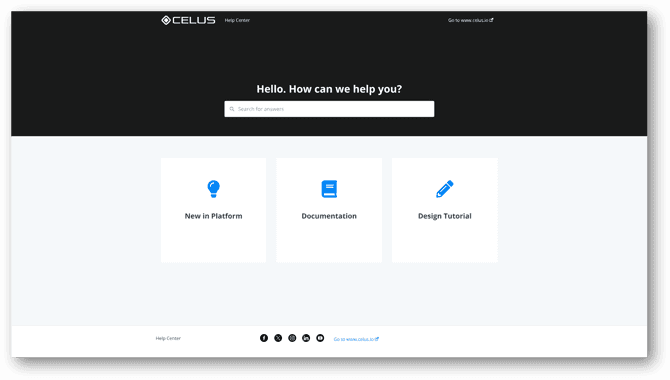
Help Center: New in Platform, Documentation, Design Tutorial
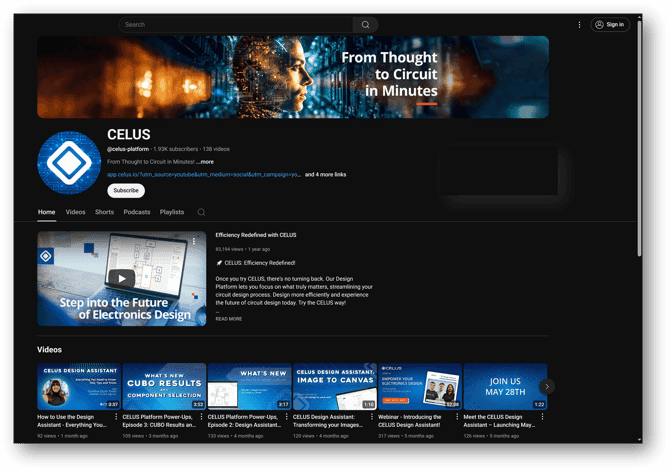
Watch tutorial: A library of step-by-step walkthroughs hosted on Youtube Watch Tutorials in Youtube

CELUS community: Engage with fellow engineers in our Slack-based support community (accessible from the Welcome screen). Join CELUS community via Slack
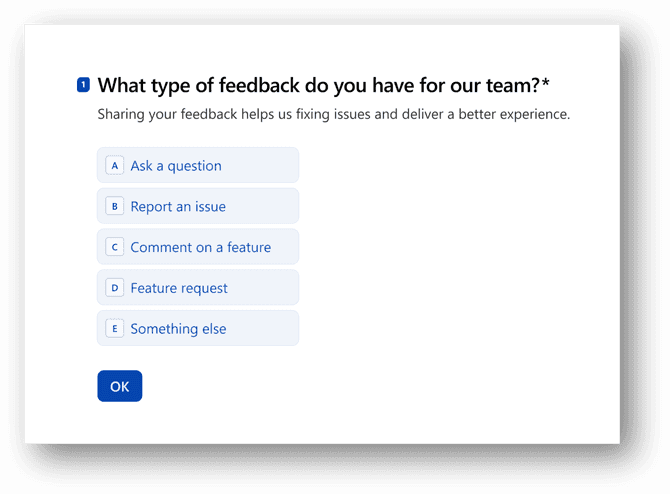
Submit Feedback: Use the in-platform form to report issues, request new features, or share suggestions. CELUS Feedback Form
Next Steps
Create a project using the path that best fits your workflow
Customize Project with Design Assistant and modular Functional Blocks
Finalize your design and export CAD-ready deliverables