Documentation
BOM (Bill of Materials) View
Platform Workflow
The BOM (Bill of Materials) View in the CELUS Design Platform gives engineers a centralized interface to review and manage all components in a resolved project, including lifecycle, pricing, and compliance data with sortable tables. It lets users generate a detailed BOM, inspect component specs and supply insights, and choose form‑fit‑function alternatives directly within the platform. Integrated with CELUS’s database and AI tools like Design Assistant, it streamlines sourcing decisions and maintains design intent throughout the process.
📝Contents
Overview
Generate BOM
BOM Table
Component Page Overview: : Specs, Sourcing, and Alternatives
Selecting Component Alternatives
Design Assistant for BOM
Celus Platform Integrated Value
The BOM View in the CELUS Design Platform provides a centralized interface for reviewing, analyzing, and modifying all components within a resolved project. Beyond component listing, the BOM View enables lifecycle validation, pricing evaluation, compliance tracking, and direct access to alternative components through an integrated CELUS database.
This documentation covers the BOM View structure, key functionalities, and step-by-step guidance for selecting component alternatives.
Upon resolving a project in CELUS Design Studio, users can access the BOM View tab. This interface enables users to inspect each component’s source, usage context, and technical attributes.
The interface displays indicators highlighting:
Number of manually selected/locked CUBOs.
Number of automatically assigned CUBOs.
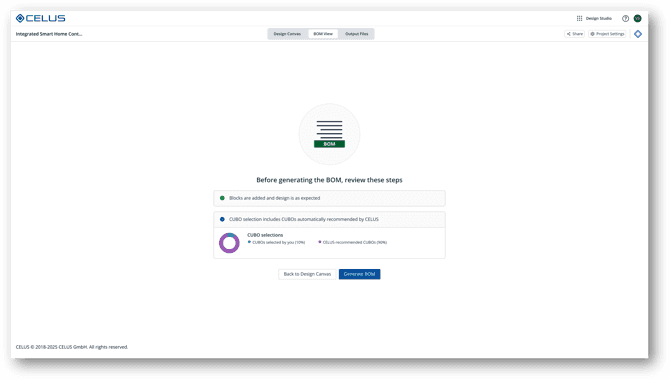
BOM View: Before generating BOM
Clicking Generate BOM navigates to the BOM Table. Here, components are presented in a sortable, filterable grid with comprehensive attributes sourced from the CELUS Library and Accuris integration.
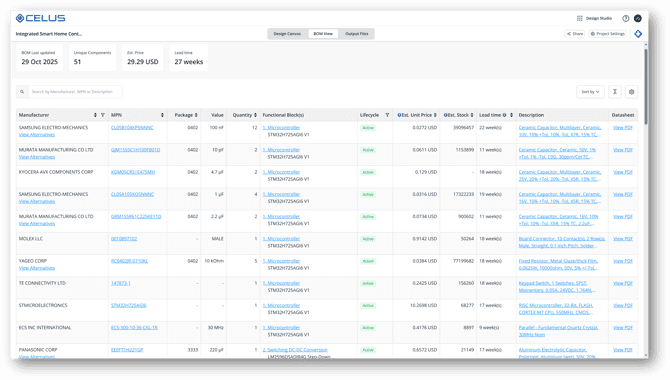
BOM View: Shows detailed component data, including manufacturer, part number, availability, pricing, and Datasheet
Manufacturer: Original component manufacturer.
MPN (Manufacturer Part Number): Unique part identifier; hyperlinked to detailed component view.
Package: Standard footprint type (e.g., SOT-23, QFN).
Value: Electrical value (resistance, capacitance, etc.), if applicable.
Quantity: Number of components used in the project
Functional Block(s): Identifies the design-level grouping in which the component is used. Each entry includes a hyperlink to the associated CUBO™ in the CUBO Results page, enabling direct traceability between component and CUBOs within the resolved project.
Lifecycle: Indicates the component's current market status. A value of Active confirms ongoing production and availability. Unknown denotes that the lifecycle status is not reported by the data provider, and current production status cannot be verified.
Est. Unit Price / Est. Stock / Leadtime: Supply chain insights from Accuris.
Description: General description extracted from supplier metadata.

BOM Table: Sort/Filter Manufacturer and Manufacturer Part Number(MPN)
BOM Table: Sort by,View mode and Hide columns
By clicking an MPN hyperlink in the BOM Table, users are redirected to the Component Page. This page centralizes technical, commercial, and logistical data.
Electrical parameters: Voltage, current, tolerance, and more.
Datasheet link: Direct PDF link from the supplier.
Supply Chain Insights: Current availability, pricing, and distributor information.
Alternatives Tab: A list of Form, Fit, and Function (FFF) alternatives within the CELUS database.

Component View: Component specifications and alternatives
Component flexibility is essential during design iteration and sourcing. CELUS Design Studio addresses this need with a streamlined workflow for selecting alternative components directly within the BOM view.
When engineers generate a BOM after selecting CUBOs, each main component is derived from the selected CUBOTM, while additional parts are populated based on system needs. The new Alternatives tab provides engineers with up to 10 compatible parts for each component. These are ranked using Form-Fit-Function (FFF) compatibility, lifecycle data from Accuris, and the user’s specified preferences.
To replace a component:
Click the View Alternatives link next to any MPN in the BOM.
A window will display up to 10 form-fit-function (FFF) compatible alternatives.
Select the preferred option to instantly replace the original MPN.

Selection of a component alternative
Enhanced Decision Support
Each alternative includes essential technical data and links to its full component profile and datasheet.
CELUS recommends a default alternative, but engineers remain in control.
All changes preserve overall system compatibility and are maintained.
This feature allows users to fine-tune BOMs derived from CUBO selections, ensuring practical flexibility in sourcing while maintaining design intent.
Design Assistant for inquiries related to BOM and Component Alternatives
A powerful enhancement to BOM View is the integration of Design Assistant, designed to support engineers with in-depth component selection guidance. Design Assistant can be accesed directly from BOM, as well as from the Component Alternatives window.
Using Design Assistant in BOM View
When reviewing alternative components, users can invoke CUBOt directly within the Alternatives tab to ask detailed, context-aware questions. The assistant responds with precise technical data, referencing the original source, such as datasheet pages or specification tables, enabling full traceability and confidence in the recommendations.
Examples of Interactive InquiriesIn the featured video demonstration, CUBOt helps validate capacitor alternatives by answering:
What’s the ceramic type of the first capacitor?
Which of these alternatives are suitable for automotive applications?
What’s the recommended footprint dimensions for [Manufacturer Part Number]?
Iterative questions asked to Design Assistant regarding Component Alternatives
Design Assistant provides links or citations to the exact documents or datasheet locations where the information was sourced, enabling users to cross-check and delve deeper into component specifications.
By merging AI-powered interaction with authoritative data sourcing, Design Assistant transforms component selection from a manual search task into a guided, intelligent decision process.
Using the CELUS Design Platform, this BOM management flow is deeply integrated with:
CUBOs as reusable, validated circuit modules.
Automated matching of component alternatives using structured functional and interface data.
Real-time validation to ensure the new component adheres to electrical, mechanical, and lifecycle requirements.
This functionality supports robust design reuse, mitigates sourcing risk, and accelerates design finalization without disrupting schematic or layout workflows.
Stay informed—see all our latest articles and updates on the Home Page.